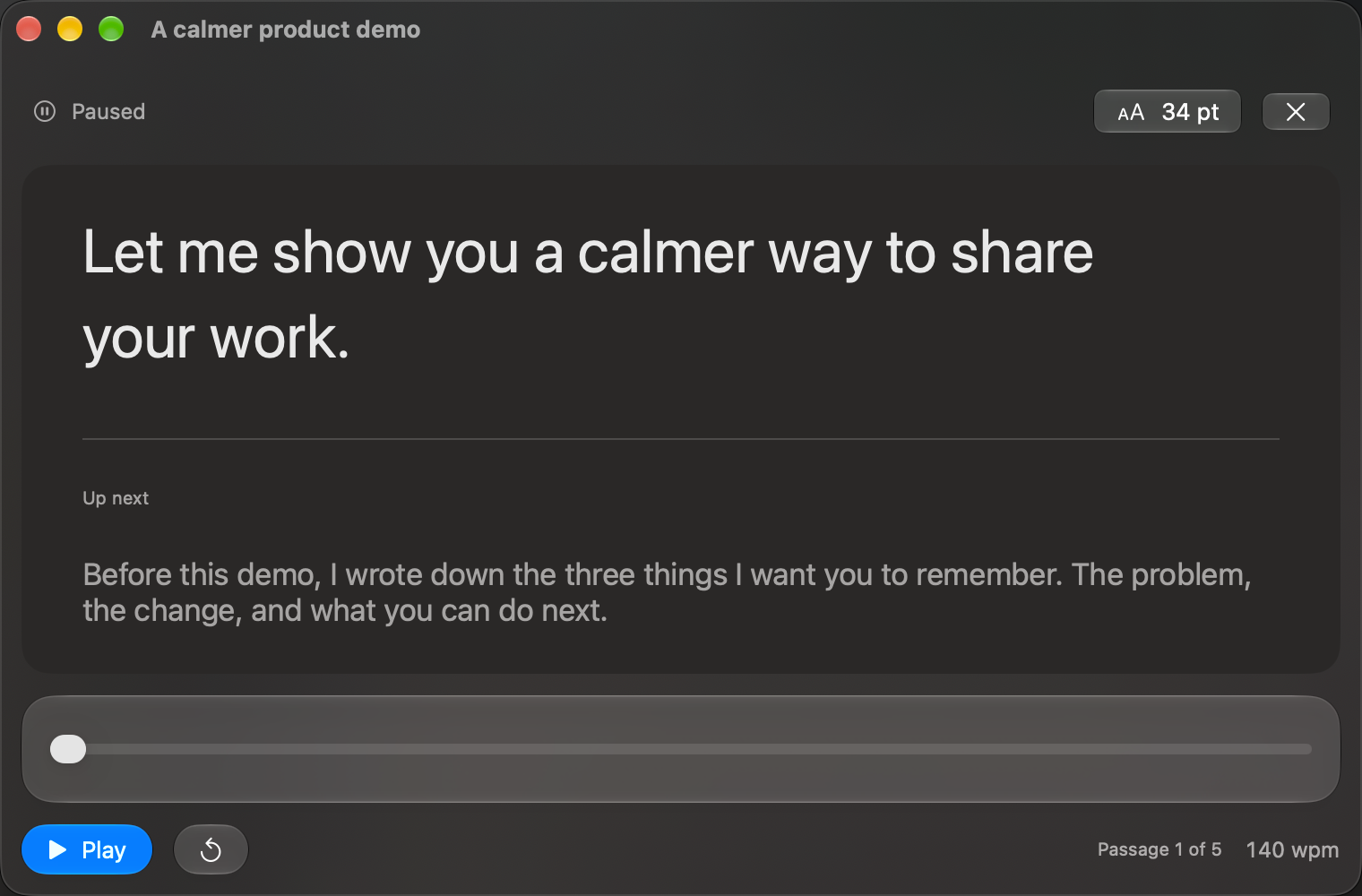
A short script can help you prepare an introduction, an interview answer or the opening of a remote presentation. The goal is to make your point clearly and then leave room for the conversation. TaL works as a separate Mac app; it is not a Zoom, Google Meet or Teams integration.
Script the part you can predict
Write the introduction and the two or three points you want to cover. Keep the rest as short prompts rather than scripting both sides of a conversation. In TaL, use a descriptive script title so you can find the right notes before joining the call.
Thanks for making time today. I would like to show you the current workflow, explain the one change we are proposing, and leave the second half for questions. Before I begin, is there anything you would like us to focus on?
Rehearse it aloud. Shorten the opening until you can say it comfortably without sounding like you are reading a document.
Position and test the reader
Open the reader and move it close to the camera’s position on your display. Make the text large enough to read from your normal seated distance. Try the paragraph view if a full page encourages you to read ahead.
Record a short test with the camera setup you will use. Look for noticeable eye movement and adjust the reader’s position or text width as needed. Placing text near a camera can reduce the distance your eyes travel; it does not create eye-contact correction.
Plan for focus changes
TaL pauses when you switch to another app and stays paused when you return. Joining a meeting, using meeting controls or clicking another window can therefore interrupt playback. Test that interaction before the call. For a conversation, you may prefer to leave the reader paused and use the passage as a stationary prompt.
Verify what other people see
Do not assume the floating reader is hidden from screen sharing. Share only the intended window where your meeting software supports it, and confirm the result with a second participant or test recording. Whole-display sharing may expose your notes. This guide does not claim verified capture exclusion in any meeting app.
Keep a plain-text backup with Export text, and pause the script when someone asks a question. For a longer talk, see the presentation rehearsal guide.