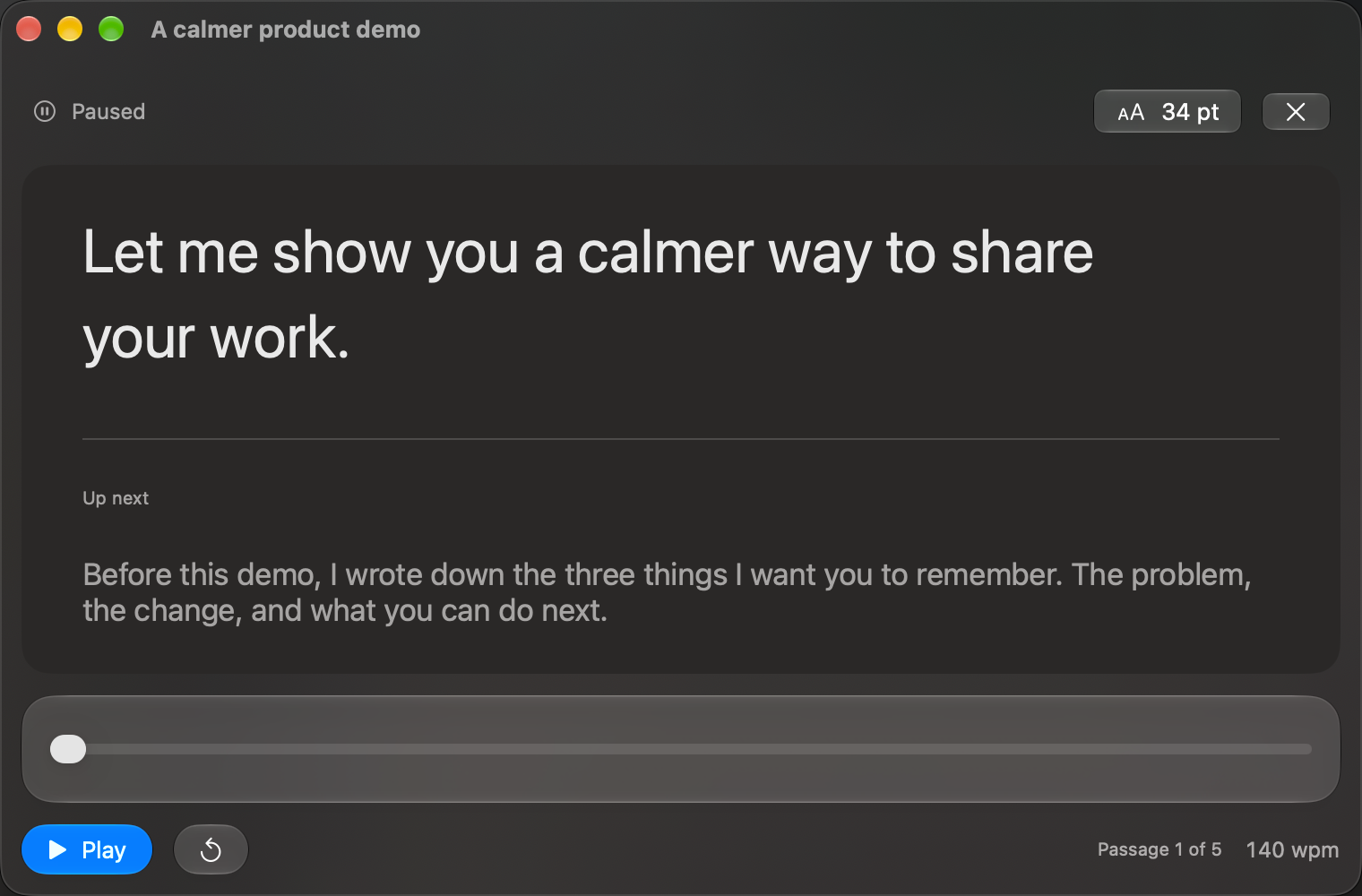
Presentation notes and a spoken script serve different purposes. Slides can hold a diagram or a headline; your script should explain what the audience needs to notice. TaL can help you rehearse that explanation before you present.
Write around the transitions
Start with the opening, the moment you move to a new idea, and the conclusion. These are useful sections to rehearse because they connect the talk. Name the script after the presentation and keep slide references on their own lines so they are easy to find while editing.
We have looked at where the process slows down. Now I want to show you one small change. On the next slide, follow the highlighted step: that is where we can remove a handoff without changing the rest of the workflow.
Read that passage aloud. Replace vague references such as “this thing” with the name of the object on the slide. You should still understand the sentence if you look away from the screen.
Rehearse one section at a time
Create the script in TaL and choose Open reader. Use the paragraph view for a single transition or the full-script view for a longer run. Adjust the font size and reading speed, then press Play. Leave space in your delivery for a slide change or a question.
Pause, edit an awkward sentence in the library, and rehearse it again. Practising a difficult transition separately is often more useful than restarting the entire talk. Scripts up to 500 words can be read on the forever-free tier.
Check the live setup separately
TaL pauses when you switch apps. Returning to it does not resume playback automatically. If you plan to operate slides while reading, rehearse that exact sequence and allow for starting playback again. TaL is not a slide controller or an automatic slide-synchronization tool.
Screen-sharing behavior depends on the meeting or presentation software and the capture mode. A floating reader is not proof that your audience cannot see it. Run a test with a second participant or a test recording before the event.
Prepare a recovery point
Keep a short opening and a closing summary you can deliver without scrolling. Export a plain-text copy of the script as a backup. For an online presentation, also read the video-call preparation guide.