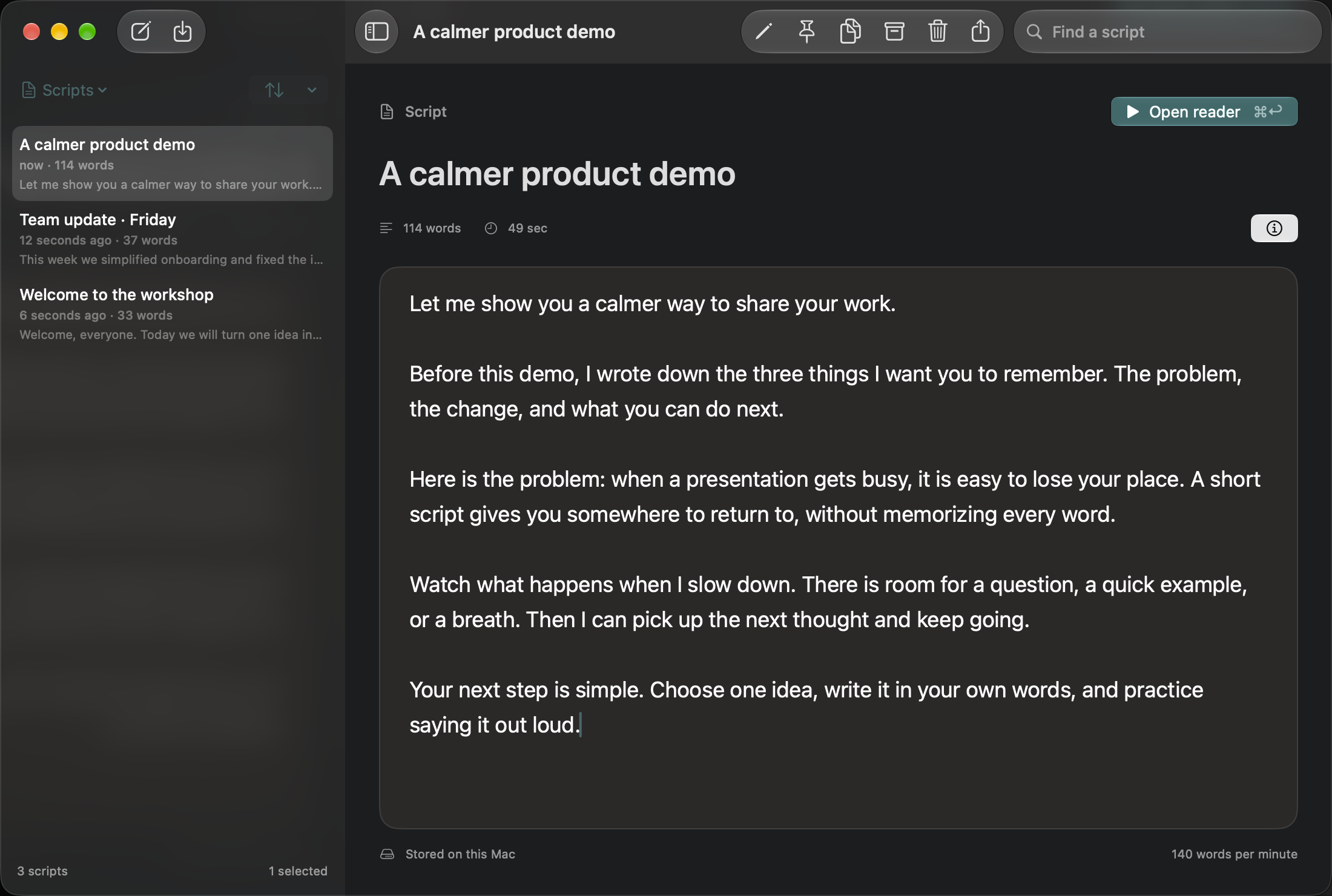
A teleprompter gives your words a predictable place on screen. Start with a short rehearsal rather than your most important recording. TaL is a native Mac app for macOS 26 or later; you can read scripts up to 500 words free forever.
Install and write your first script
Download TaL from its product page. Open the disk image, drag TaL to Applications, then open it from Applications. If macOS reports a damaged app or signature error, contact support instead of disabling security checks.
Create a script with New script, give it a recognizable title and type or paste a short introduction into the editor. Use short paragraphs with one idea each. The editor shows the word count; keep this first attempt under 500 words so no trial or purchase is needed.
Open the reader
Choose Open reader. Position the floating reader where you can see it comfortably, then open Reading settings to adjust the text. Start with a large enough font that you can read without leaning toward the screen. Try the full-script view first; try the paragraph view when you want a smaller chunk of text at a time.
Press Play and read aloud. Adjust the reading speed to your delivery rather than trying to chase the text. Use Pause when you need a break and Restart for another take. Start playback deliberately after switching back from another app: TaL pauses when the app loses focus and does not automatically resume.
Try a short rehearsal
Let me show you one thing that made this task easier. First, I will explain the problem. Then we will walk through a small example. At the end, you will have a clear next step to try yourself.
Read it once without recording. Replace any phrase you would not normally say. A good script should sound like you speaking, with enough room to breathe.
Keep a copy you can reuse
Return to the library to edit the script for your next rehearsal. Use Export text when you want a plain-text copy outside TaL. For recording, continue with the YouTube workflow or the product demo workflow.