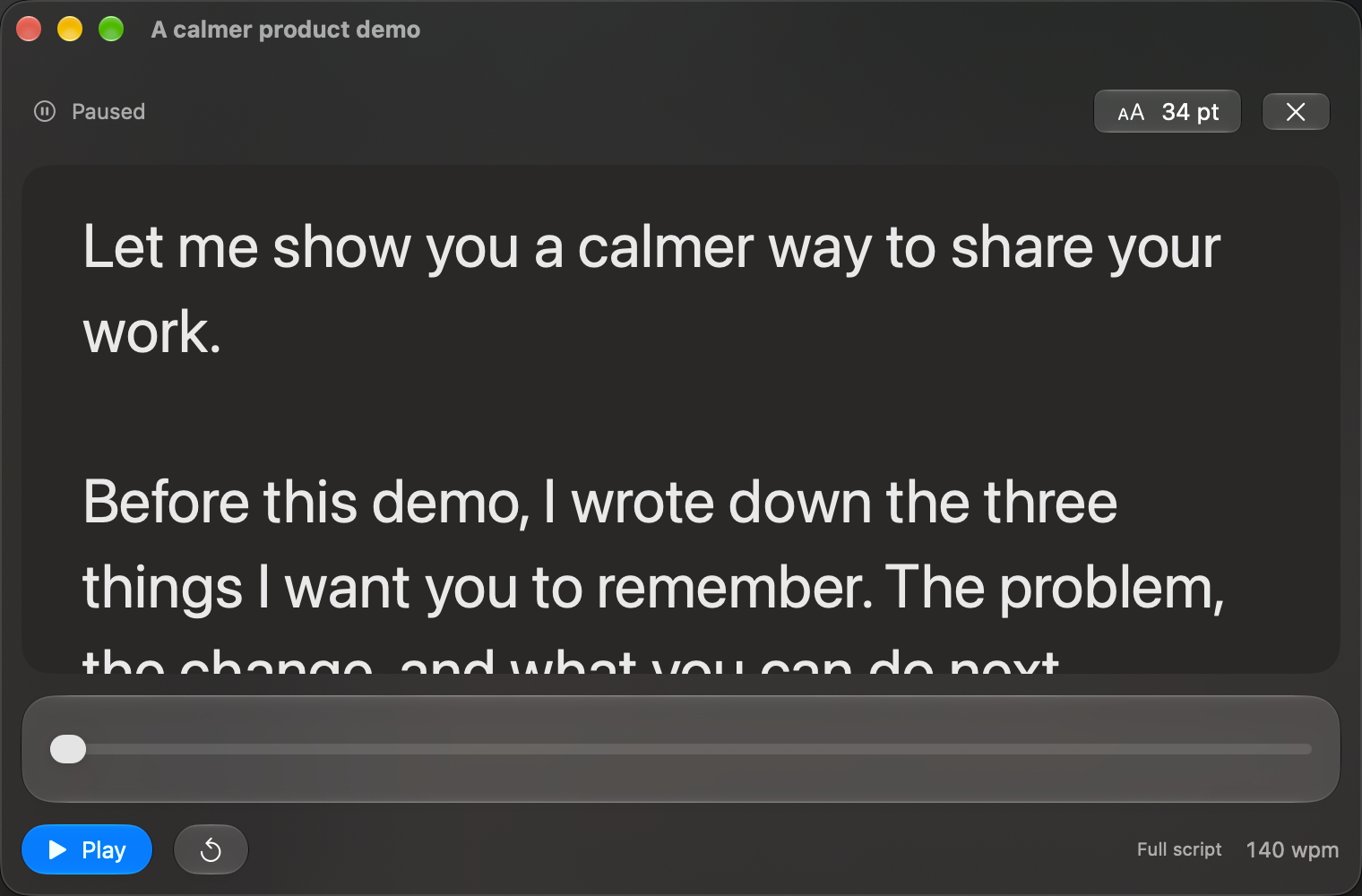
A YouTube script is easier to deliver when it is written for your voice. TaL supplies a floating script reader on your Mac; your camera or recording software handles the recording. TaL does not record, edit or upload your video.
Write a spoken opening
Tell the viewer what they will learn, then move quickly to the first example. Read the script aloud while editing. Break long sentences and remove phrases you would never use in conversation. Give each paragraph a single purpose.
In this video, we are going to prepare a short demo without memorizing every line. I will show you how I structure the opening, rehearse the difficult part, and record a take that leaves space for an edit.
Keep this first recording under 500 words to use TaL’s forever-free playback. Longer scripts require Pro access or an explicitly started optional Pro trial.
Set up a comfortable read
Open the script in TaL’s reader. Place the window near the camera, adjust the font size and choose a reading speed that allows natural pauses. Try full-script mode for a continuous passage or paragraph mode for a short section. Press Play for a practice take before recording.
If you find yourself racing the text, slow it down or simplify the sentence. The speed control is a pacing aid, not speech recognition: do not expect the app to follow your voice automatically.
Record a small section
Start your recording setup, return to TaL and deliberately start playback. Switching apps pauses the reader; returning does not automatically resume it. Allow a moment of silence before speaking so you have room to trim the start of the take later.
Record one section, pause, and review it. Check framing, sound and eye movement before recording the rest. If you are recording the display as well as the camera, verify whether the reader appears in the captured image. TaL does not promise to hide itself from your recorder.
Make the next take easier
Edit the sentence that caused trouble rather than trying to repeat it perfectly. Keep notes about where you want an on-screen example or cutaway, then export the script as plain text if you need it during editing. For walkthroughs that involve clicking another app, use the product demo workflow.